

How to Review Your Book Proof with Adobe Comments
Simple guide to adding comments to your book proof using Adobe's online review link - no software download required!
When we deliver your formatted book proof, we'll send you an Adobe review link. Simply click the link in your email, and you can add comments directly in your browser - no software download needed! Your comments are automatically saved and sent back to us. This guide will show you exactly how to use the commenting tools.
11. Add Comments (Sticky Notes)
Sticky notes are the primary way to leave feedback. They work just like putting a post-it note on a physical page.
.avif?dpl=dpl_9Kd3wGxozkmSTSaUgZ8KiX9SBfKd)
Select the Comment Tool
Click the speech bubble icon in the toolbar
Place Your Note
Click anywhere on the page where you want to leave a comment
Type Your Feedback
Type your comment in the box that appears and click "Post"
💡 Pro Tips
- Use sticky notes for general feedback or questions
- Be specific: "Increase spacing here" is better than "Fix this"
22. Highlight Text
Use the highlight tool to mark specific text that needs attention, like typos or formatting issues.
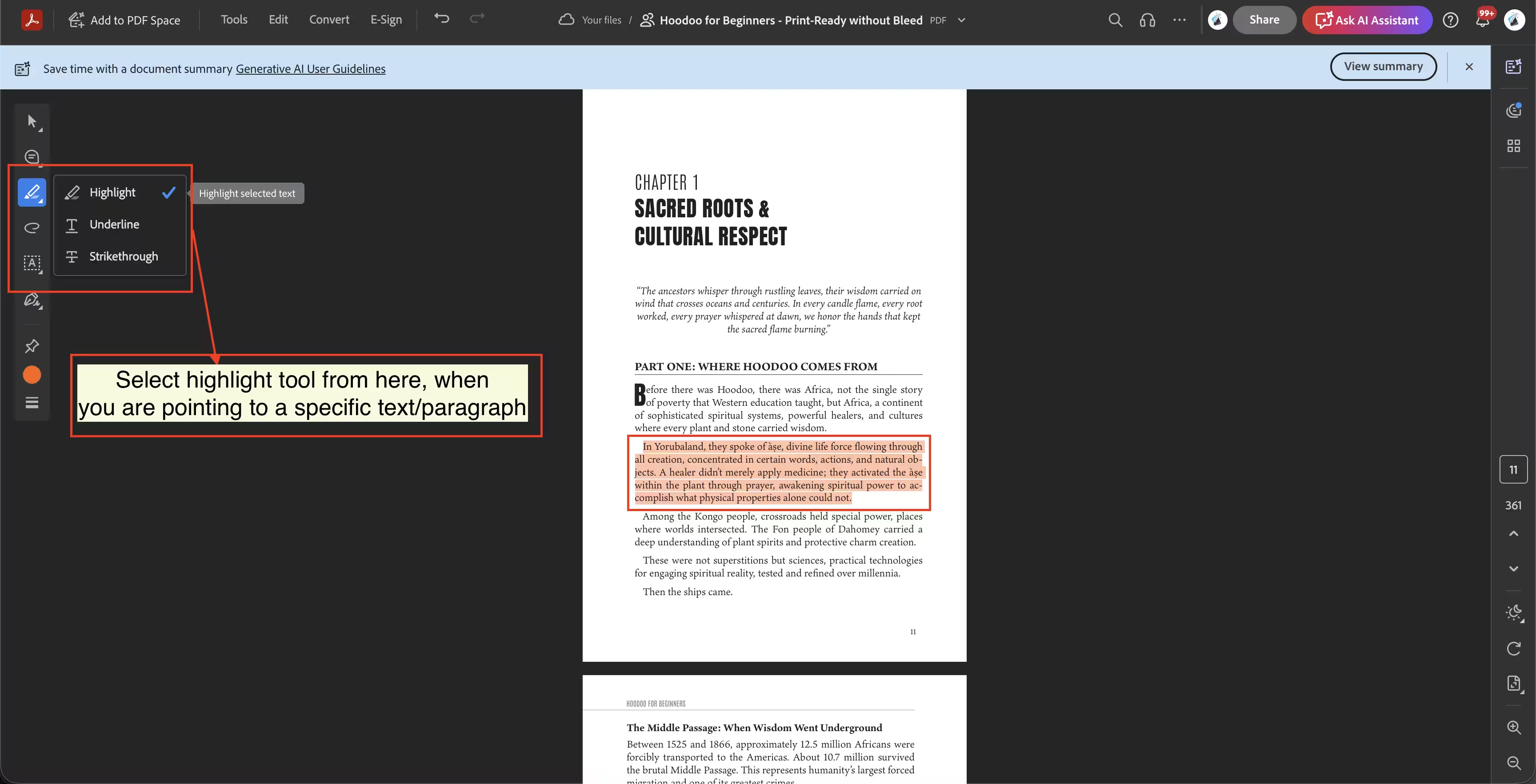
Select the Highlight Tool
Click the highlighter icon (marker pen) in the toolbar
Select Text
Click and drag over the text you want to highlight
Add a Note (Important!)
The comment box opens automatically - type what needs to change (e.g., "Delete this", "Make bold")
33. Add Text Comments
Use the text tool to type instructions directly on the page, making them clearly visible.
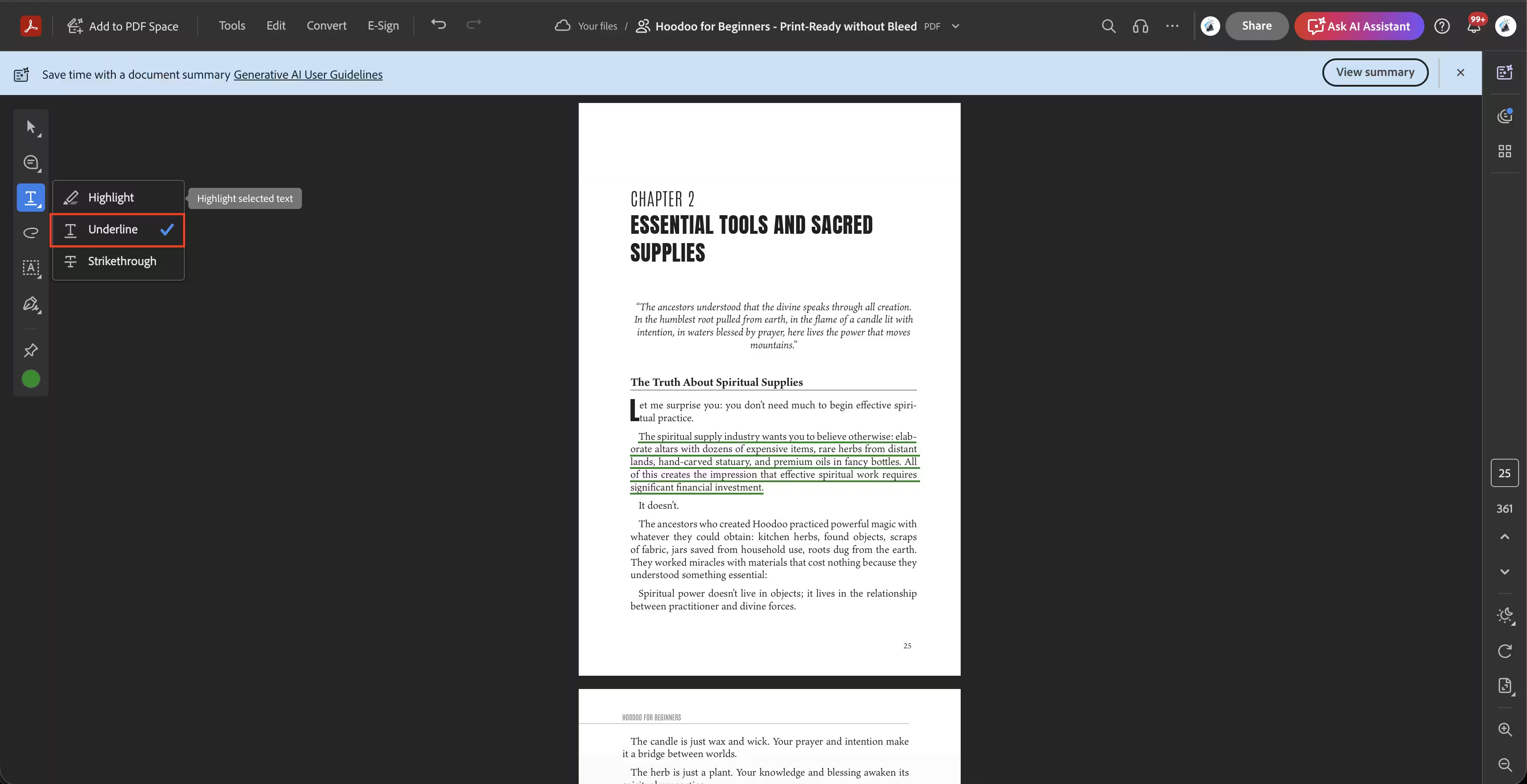
Select the Text Tool
Click the "T" icon in the toolbar
Click and Type
Click where you want the text to appear and start typing
💡 Pro Tips
- Great for suggesting new headings or rewriting short sentences
- Text comments are very visible on the page layout
44. Use Drawing Tools
Sometimes it's easier to circle an issue or draw an arrow to point something out.

Select Drawing Tools
Click the pencil or shapes icon in the toolbar
Mark Up the Page
Draw circles, arrows, or lines to indicate changes
Explain Your Mark
Always add a comment explaining what the drawing means
55. Manage Comments
You can view a list of all your comments, reply to them, or edit them.
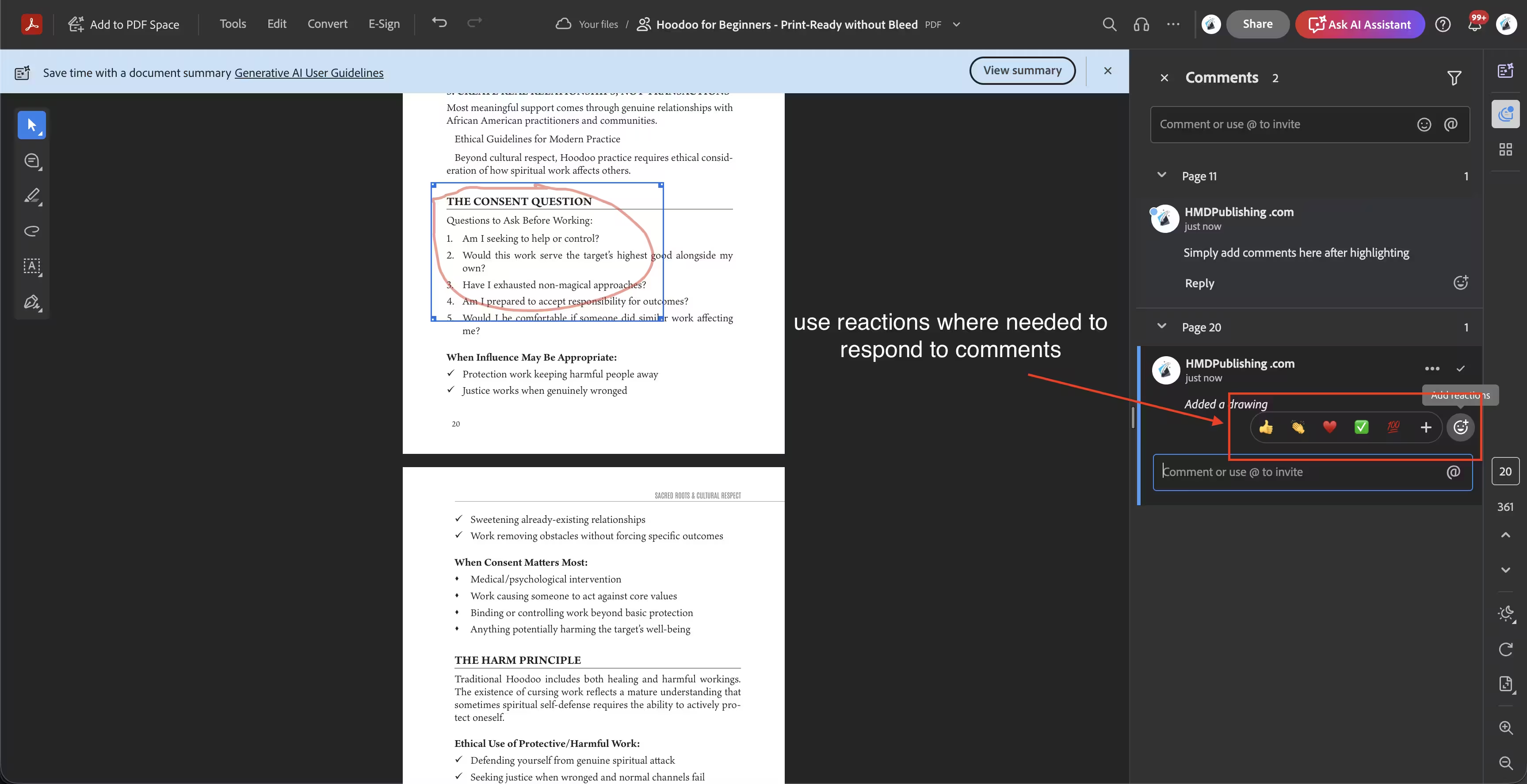
Open Comments Panel
Click the comment icon in the top right to see the list
Review and Edit
Click any comment to jump to that location. You can edit or delete your own comments.
💡 Pro Tips
- Use this list to do a final check before finishing your review
- Your comments save automatically - no need to hit a "Save" button
That's it! Using these tools makes it easy for us to understand exactly what changes you want. Remember, your feedback saves automatically, so you can close the window and come back anytime.
What's your next move?
If your manuscript is final, order book formatting and we'll have a sample chapter back to you in roughly 48 hours. If you're still unsure, run the free readiness check first.
Or contact support if you have questions before ordering.