

How to Add Comments in Adobe Acrobat
The complete guide to reviewing PDF book proofs. Learn every commenting tool in under 10 minutes.
Watch Our Video Tutorial
Before You Start
Click the PDF link we've sent you. That's it. No Adobe account needed. Simply select "Continue as Guest" and you're ready to review your formatted book.
Don't worry about saving. All comments sync automatically as you work.
Your Comment Toolkit
Master these 8 tools and you'll be able to give clear, actionable feedback on any PDF.
Add a General Comment

Got feedback about the overall layout, title page design, or something that isn't tied to specific text? This is your go-to tool.
Click "Add a comment" in the left toolbar, then click anywhere on the page to drop your note.
Example comments:
- "Can we try a different chapter heading style?"
- "I'd like more white space on this page"
- "The margins feel too narrow here"
Highlight Text (Your Most Important Tool)

Use this for almost everything. When you're pointing out a typo, suggesting a word change, or flagging a sentence that needs attention, highlight it first. This tells us exactly what you're referring to, so there's no confusion.
How to do it:
- Click and drag over the text you want to highlight
- Select "Highlight" from the popup menu
- Add your comment explaining the issue
Clear, precise, and saves everyone time.
Change Highlight Colour

Want to colour-code your feedback? Click the colour circle in the left toolbar to open the palette.
Popular colour systems:
- Yellow: Typos and errors
- Blue: Questions
- Green: Approved or "love this!"
- Red: Must change
We'll address every comment regardless of colour, so use whatever system works for you. Or skip colour-coding entirely.
Strikethrough Text

When something needs to go, strike it out. Select the text you want deleted, then choose "Strikethrough" from the toolbar.
The line through the text makes your intention unmistakable. It's far clearer than writing "please delete this paragraph." We'll see exactly which words should be removed.
Replace Text
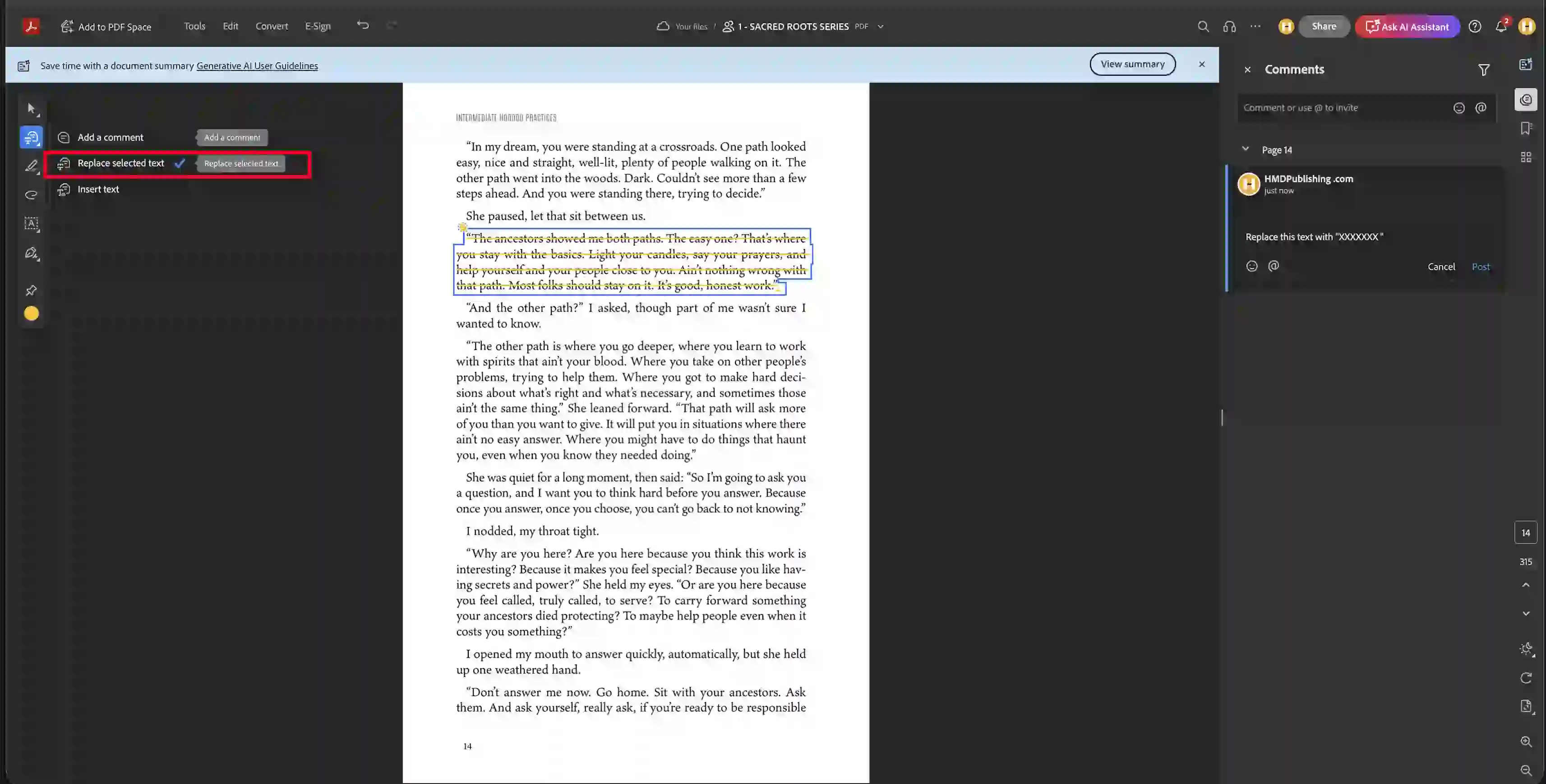
The fastest way to request a text swap.
How to do it:
- Highlight the text you want changed
- Click "Replace selected text"
- Type your replacement in the comment box
The original text appears crossed out while your new version sits right beside it. We see both instantly.
Mark Up Illustrations or Visual Elements

Sometimes words aren't enough. Use the drawing tool to circle problem areas, indicate where you'd like an image placed, or draw attention to alignment issues.
You can sketch directly on the page. Arrows, circles, freehand marks. Whatever helps us understand your vision.
The comment panel will show "Added a drawing" so we know to look closely at your markup.
Edit or Delete Your Comments

Changed your mind? Click the three dots (...) on any comment you've made.
Your options:
- Edit your text
- Delete the comment entirely
- Copy the content
- Grab a direct link to share
You can only modify your own comments. Other reviewers' notes will stay locked.
Resolve a Comment
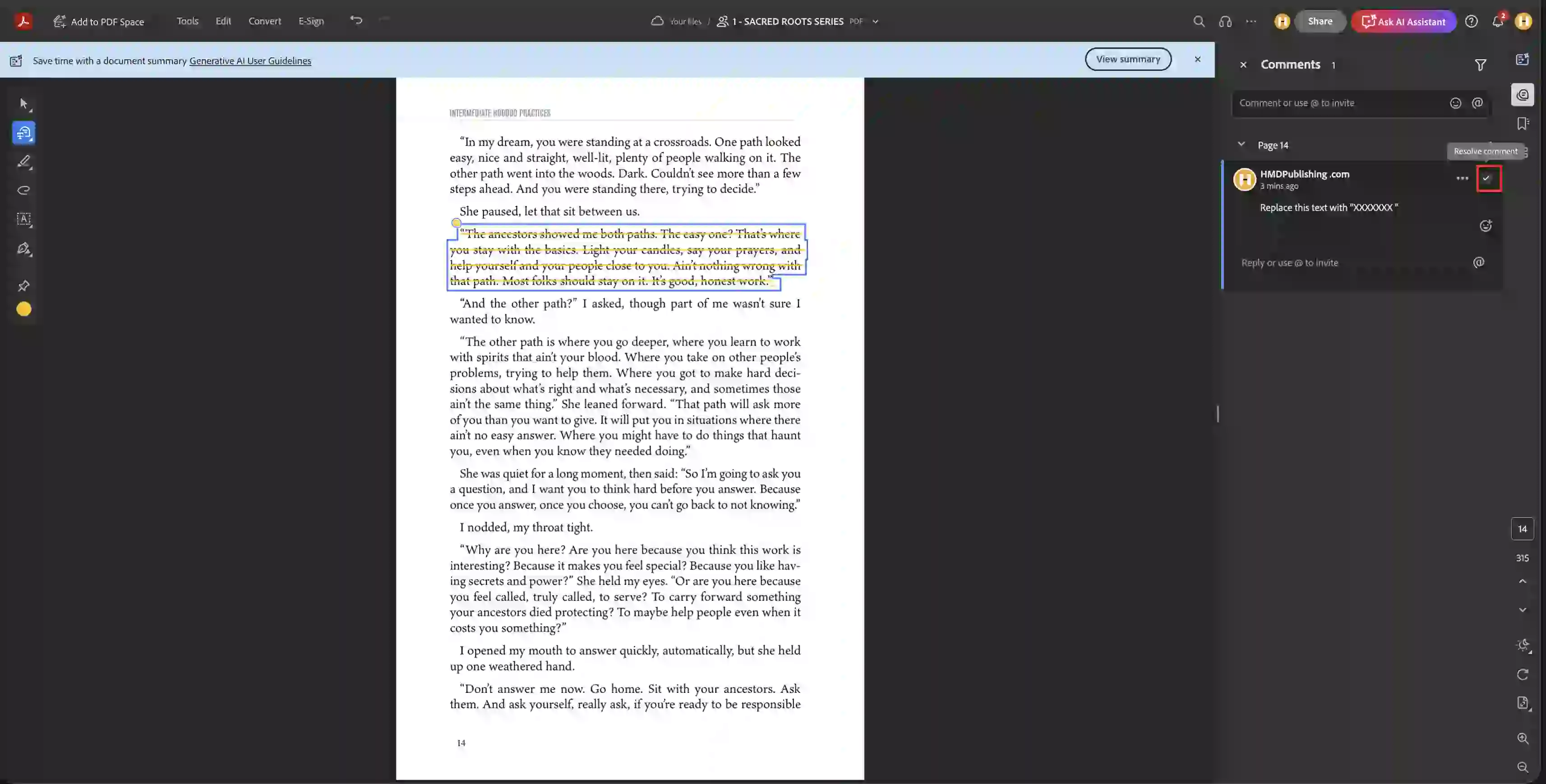
Once feedback has been actioned and you're happy with the change, tick the checkbox to mark it as resolved.
This keeps your review organised. You'll always know what's been addressed and what's still pending. Resolved comments remain visible for reference, just neatly tucked away.
Quick Tips for Faster Revisions
Highlight first, comment second. Always show exactly which text you mean.
Need Professional Book Formatting?
This guide is provided free by HMD Publishing, a premium book publishing services company. We've helped authors publish over 10,000 books since 2015.
- ✓eBook formatting for Kindle, Apple Books, and Kobo
- ✓Print-ready interior design for Amazon KDP and IngramSpark
- ✓Custom chapter headers and professional typography
- ✓Complex layouts including tables, images, and footnotes
Need a Hand?
Stuck on something? We're here to help.