

How to Grant Amazon Ads Access
Add HMD Publishing to your Amazon Advertising account in 4 simple steps. Takes less than 5 minutes.
Quick Way to Grant Access
If you already have an Amazon Advertising account, you can go straight to the user management page:
Open Amazon Ads User ManagementClick the button above, then click "Invite users" and enter: ads@hmdpublishing.com
Select Editor as the permission level, then click "Invite users". That's it — we'll take it from there.
Watch Our Video Tutorial
Video tutorial coming soon
Before You Start
You will need an active Amazon Advertising account linked to your KDP or Vendor Central account. If you do not have one yet, visit advertising.amazon.com to set one up — it takes just a few minutes using your existing Amazon account.
Once you have granted access, our team will accept the invitation within 24 hours and reach out to confirm we are in.
4 Steps to Grant Access
Follow these steps in order. The whole process takes under 5 minutes.
Open Account Access & Settings
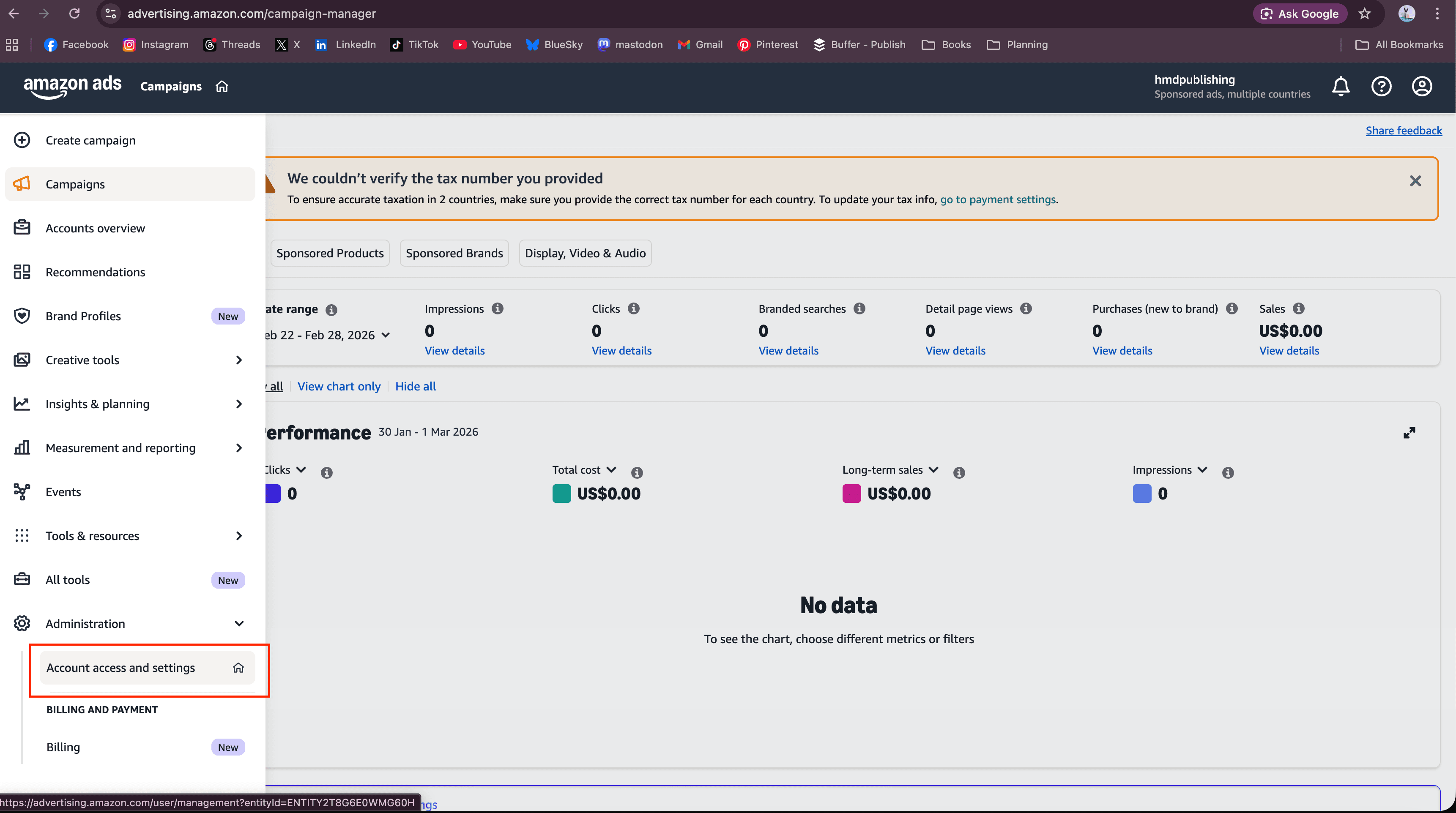
Open your browser and go to advertising.amazon.com. Sign in with the Amazon account linked to your publishing account.
From the Campaign Manager, click Administration in the left sidebar, then click Account access and settings.
Make sure you are signed in to the correct account, especially if you manage multiple Amazon accounts. The Campaign Manager should show your active campaigns and books on the dashboard.
Click "Invite Users"
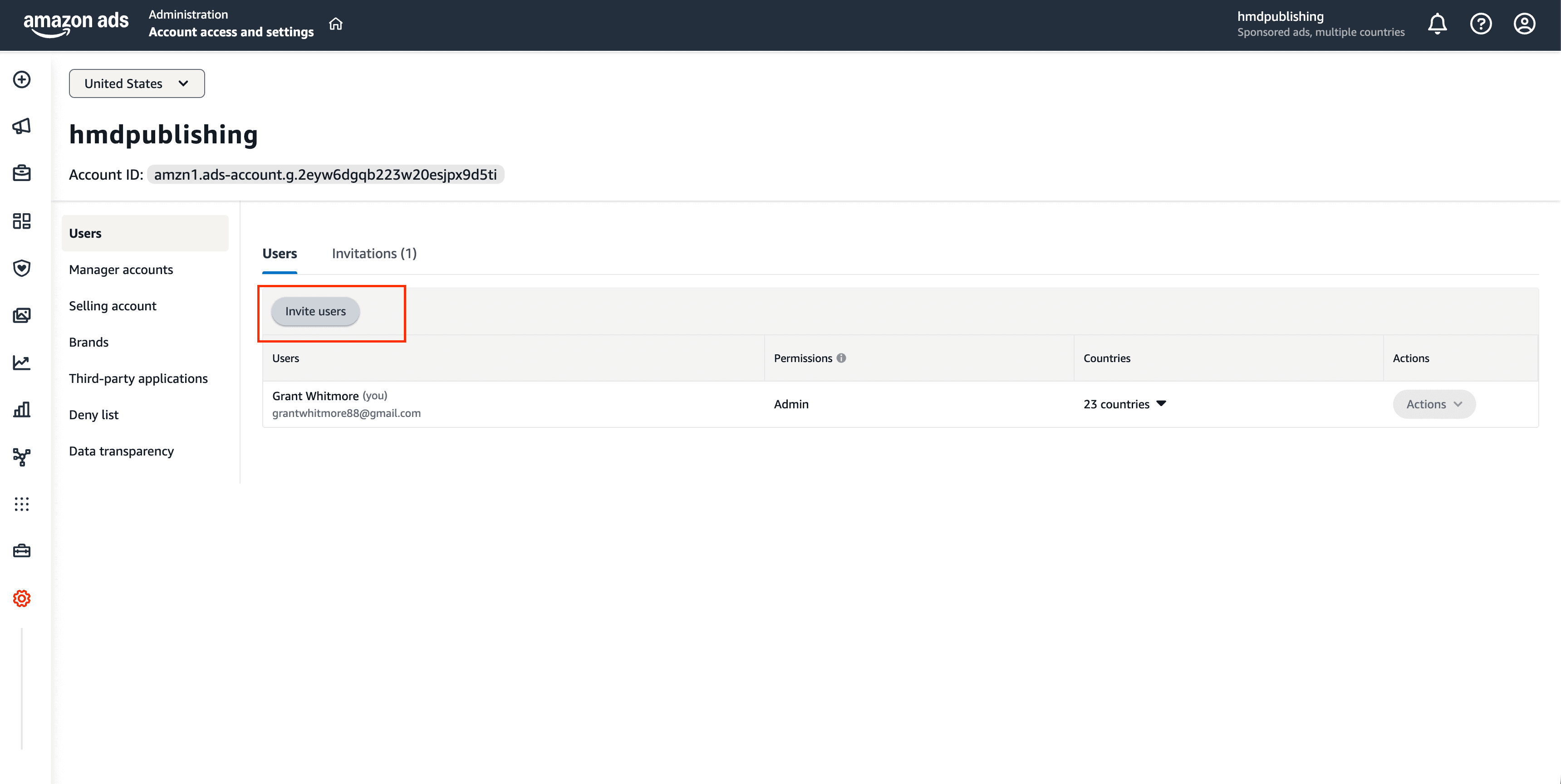
On the Users tab, click the Invite users button. This opens a form where you can enter our email address and set the permission level.
You may see existing users listed on this page — that is normal. You are adding a new user for HMD Publishing to manage your ad campaigns.
Enter Our Email Address
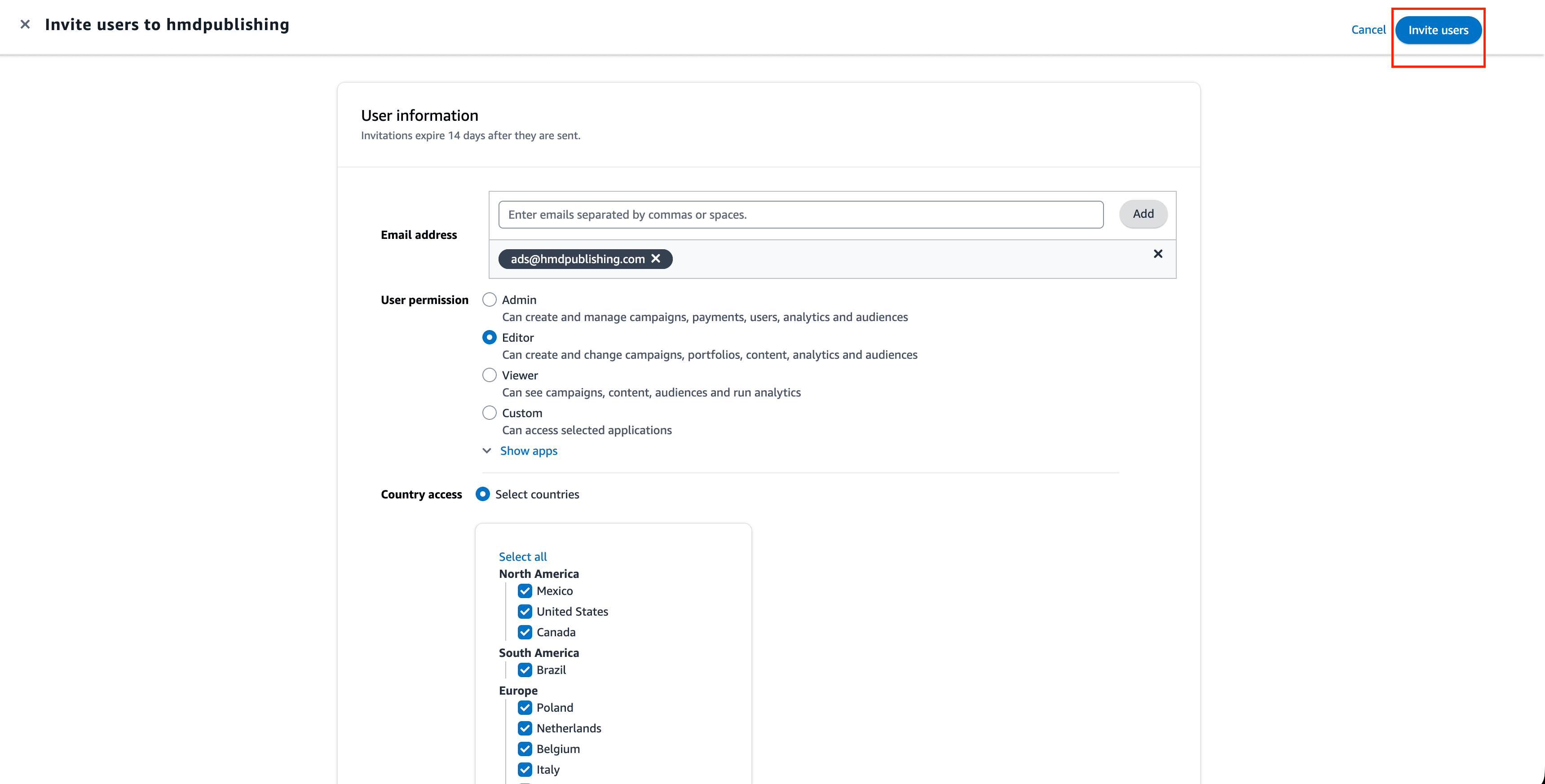
In the email field, type our dedicated advertising email address and click Add. Use the copy button below to avoid any typos.
Our email address:
ads@hmdpublishing.comClick "Copy Email" then paste directly into the email field in Amazon Advertising.
This address goes directly to our advertising team. We monitor it during business hours and will accept your invitation promptly.
Select Editor & Invite
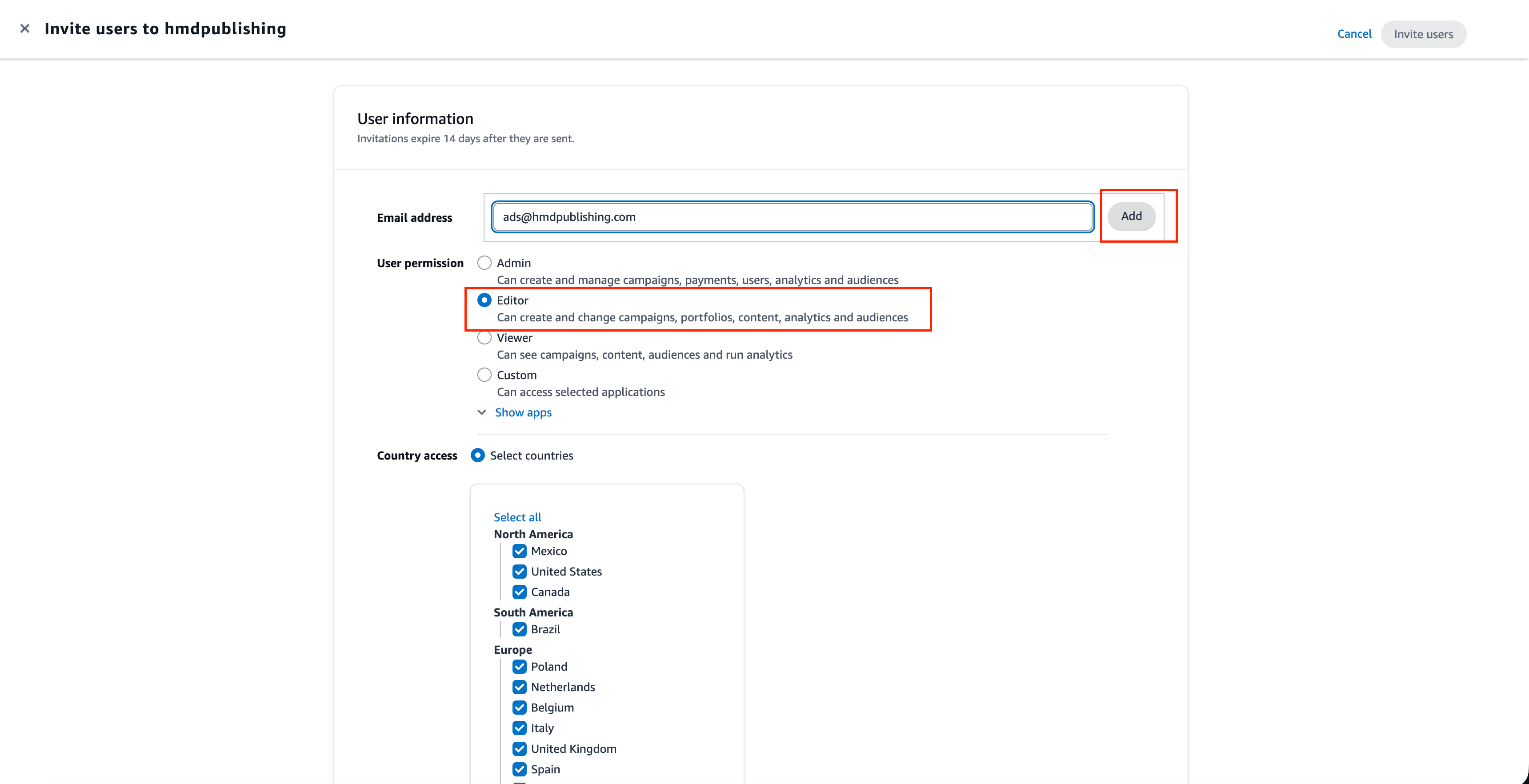
Select Editor as the permission level. Under Country access, click Select all to enable all marketplaces. Then click Invite users in the top-right corner.
What Editor can do:
- ✓Create and change campaigns, portfolios, and content
- ✓Manage analytics and audiences
- ✓View performance reports
- ✗Access or change billing details
- ✗Modify account-level settings
That is it. You are done.
Our team will accept the invitation within 24 hours and confirm via email.
Having Trouble?
Waiting on us to accept?
Our team accepts all invitations within 24 hours during business days. If you sent the invitation on a Friday, expect confirmation on Monday. We will email you once we are in.
Having billing issues with your Amazon Ads account?
If your Amazon Advertising account has billing problems, ad campaigns may be paused. See our troubleshooting guide.
How to Fix Amazon Ads Billing IssuesNot sure how to navigate your Amazon Ads dashboard?
Once we have access, you can follow your campaign performance in real time. Learn how to read your dashboard.
How to Check Your Amazon Ads DashboardFrequently Asked Questions
Add ads@hmdpublishing.com. This is the dedicated account our advertising team uses to manage all client campaigns. Double-check the spelling before sending the invitation.
Ready to Scale Your Book Sales?
This guide is provided free by HMD Publishing. We specialise in Amazon Advertising for authors and publishers, helping books reach the right readers with data-driven ad campaigns.
- ✓Data-driven Amazon Advertising campaigns for books
- ✓Keyword research and bid optimisation across all marketplaces
- ✓Sponsored Products, Brands, and Display ad management
- ✓Monthly performance reporting and strategy adjustments
Need a Hand?
Stuck on something? We're here to help.